Mastering the Smooth Procreate Lettering Brush for Flawless Digital Calligraphy
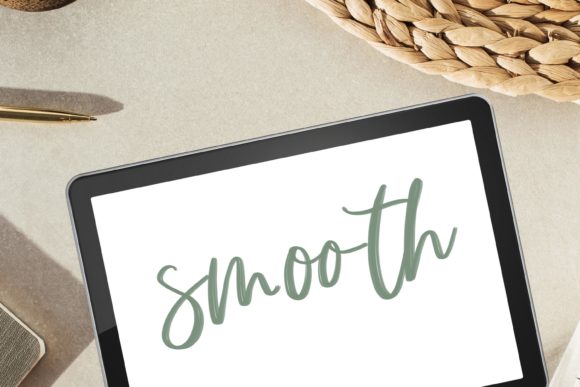
Digital lettering has revolutionized how artists, marketers, and entrepreneurs create visual content. Yet, many creators struggle with jagged edges, inconsistent stroke weight, or a lack of organic feel in their digital work. The Smooth Procreate Lettering Brush addresses these common pain points by offering a refined tool designed specifically for hand lettering and painting. Unlike standard brushes that may feel slippery or unresponsive, this brush provides a smooth texture that mimics the natural flow of ink on high-quality paper.
Whether you are a beginner exploring modern calligraphy or a professional designer refining your portfolio, understanding how to properly utilize this tool is essential. Many users download digital assets without fully grasping the technical requirements or artistic nuances, leading to frustration. This guide will help you avoid common pitfalls and maximize the potential of your Procreate Calligraphy Brush with Smooth Texture.
Understanding the Technical Requirements
One of the most frequent misunderstandings occurs before the brush is even used. It is crucial to recognize that this product consists entirely of digital files. There is no physical product shipped to your doorstep. This distinction matters because it sets expectations for immediate access versus waiting for delivery. You receive an instant download, which means you can start creating minutes after purchase, provided you have the correct setup.
The primary requirement is an iPad with the Procreate app installed. This brush is not compatible with Android tablets, desktop Photoshop, or other illustration software unless they specifically support Procreate brush formats. Attempting to use these files in unsupported applications will result in errors or corrupted data. Furthermore, the method of installation is specific. You must download and open the files directly on your iPad into Procreate. Trying to transfer files via complex cloud services or email attachments often leads to broken links or incompatible file types. For the best experience, tap the download link on your iPad, and let the system automatically import the brush set into your Procreate library.
Common Mistakes in Brush Selection and Usage
Choosing the right tool is only half the battle; using it correctly is where many creators stumble. A common error is assuming that a "smooth" brush requires no technique. In reality, the Smooth Procreate Brush for Hand Lettering and Painting is designed to respond to your pressure sensitivity and tilt. If you hold your stylus at a rigid 90-degree angle with uniform pressure, you will lose the dynamic variation that makes lettering look authentic.
Another overlooked detail is the canvas resolution. Many beginners work on small canvases to save device memory, but this limits the quality of the brush’s texture. When you scale up your artwork for print or high-resolution social media posts, pixelation becomes apparent. To maintain the integrity of the textured lettering, always start with a canvas size that matches your final output dimensions. For Instagram posts, 300 DPI at 1080x1080 pixels is standard, but for prints, you may need 300 DPI at much larger dimensions.
Additionally, some users neglect to customize the brush settings. While the default settings are optimized for general use, your personal style might require adjustments. For instance, if you prefer heavier downstrokes, you might adjust the pressure curve in Procreate’s settings. Ignoring these customization options can lead to a generic look that fails to stand out in a crowded digital marketplace.
The Impact of Poor Technique on Your Results
When these mistakes accumulate, the impact on your work is significant. Jagged lines and inconsistent spacing can make your lettering appear amateurish, undermining your credibility as a designer or brand owner. For entrepreneurs and marketers, poor-quality visuals can reduce engagement rates and conversion. A logo or social media graphic created with improper brush handling may look distorted on different devices, affecting brand consistency.
Moreover, inefficient workflows caused by technical misunderstandings can waste valuable time. Spending hours trying to fix pixelated edges or re-importing corrupted files detracts from the creative process. By ensuring you have the correct hardware and software setup, you streamline your workflow, allowing you to focus on creativity rather than troubleshooting.
Practical Advice for Better Outcomes
To avoid these issues, adopt a proactive approach to your digital lettering practice. First, verify your device compatibility. Ensure your iPad supports the latest version of Procreate and that your Apple Pencil (or compatible stylus) is charged and paired correctly. Test the Procreate Brush on a blank canvas to familiarize yourself with its pressure response. Practice basic strokes—upstrokes, downstrokes, and curves—to understand how the brush behaves under different pressures.
Second, invest time in learning the fundamentals of modern calligraphy and modern lettering. Even with a superior tool, understanding structure, spacing, and composition is vital. Use guidelines within Procreate to keep your lettering consistent. Many tutorials are available online that demonstrate how to layer textures and colors using this specific brush type. Experiment with blending modes to add depth to your textured brush strokes, creating a more dynamic and professional appearance.
Third, organize your digital assets. Keep your brush sets categorized within Procreate for easy access. Regularly back up your work to avoid data loss. If you encounter any issues with the file installation, remember that support is available. Do not hesitate to contact the creator if you have problems using this product. They are committed to helping you succeed and will do their best to resolve any technical difficulties you may face.
What to Check Before Making a Decision
Before purchasing or committing to using the Smooth Procreate Lettering Brush, consider your current skill level and goals. Are you looking to enhance your Digital Illustration skills? Do you need a reliable tool for client projects? Evaluate whether your current workflow supports digital lettering. If you are new to Procreate, consider taking a brief tutorial on the app’s interface to ensure you are comfortable with the environment.
Also, review the terms of use for the brush set. Most digital brushes allow for commercial use in your creations, but it is always wise to confirm this to avoid legal issues later. Ensure that the style of the brush aligns with your aesthetic. The Classic Procreate feel combined with modern smoothing algorithms makes this brush versatile for various styles, from elegant scripts to bold, contemporary headers.
In conclusion, the Smooth Procreate Lettering Brush is a powerful asset for anyone serious about digital lettering. By avoiding common technical and artistic mistakes, you can unlock its full potential. Remember, the tool is only as good as the hand that wields it. Practice patience, refine your technique, and leverage the support available to you. With the right approach, you will create stunning, professional-quality lettering that elevates your brand and artistic expression.