Procreate Doodle Planner Brush Stamps: A Practical Guide to Digital Planning Efficiency
Digital planning has evolved from a niche hobby into a robust workflow for professionals, students, and creatives alike. At the heart of this shift is the ability to customize layouts quickly without sacrificing aesthetic appeal. This is where Procreate Doodle Planner Brush Stamps become an invaluable asset. Rather than drawing every decorative element by hand, these pre-made digital assets allow you to populate your journals, planners, and creative projects with consistent, high-quality doodles in seconds. However, many users approach digital brush sets with misconceptions that can lead to frustration or underutilization of the product.
Understanding the technical limitations and best practices for these tools is essential before you download. This guide clarifies what these stamp sets are, highlights common pitfalls buyers encounter, and provides actionable advice to ensure you get the most value from your digital purchase.
Understanding the Tool: More Than Just Clipart
It is crucial to distinguish between standard image files and Procreate brush stamps. While both can be used in digital design, Procreate Doodle Planner Brush Stamps are engineered specifically for the Procreate app on iPad. They function as single-stamp brushes, meaning one tap of your Apple Pencil places a complete, complex illustration onto your canvas. This differs significantly from importing PNG images, which requires resizing, rotating, and layer management for each individual element.
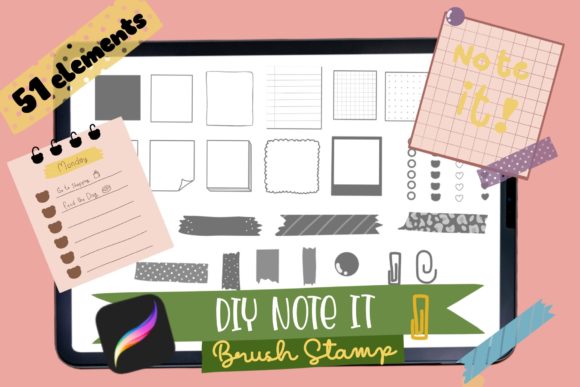
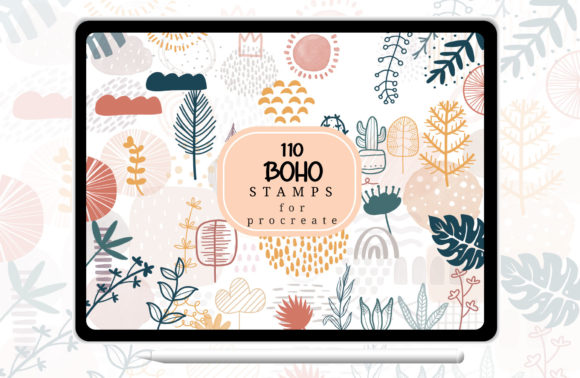
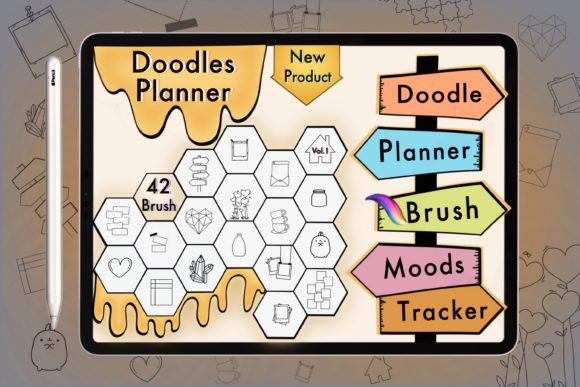
The primary advantage here is efficiency. A set typically includes dozens of unique designs—such as mood tracker icons, floral accents, or functional planner elements like checkboxes and headers. Because these stamps have transparent backgrounds, they integrate seamlessly with your existing color schemes and textures. You are not stuck with a fixed look; instead, you can adjust the opacity, change the color, or blend modes to match your specific project theme, whether it is a minimalist bullet journal or a vibrant greeting card.
Common Mistakes and How to Avoid Them
Even experienced digital artists can stumble when integrating new brush sets into their workflow. Below are frequent misunderstandings that affect usability and satisfaction.
Mistake 1: Ignoring Software Compatibility
The most critical error buyers make is assuming universal compatibility. These stamps are designed exclusively for the Procreate app on iPad. They will not work in Photoshop, Illustrator, GoodNotes, or any desktop-based design software. Attempting to use them outside of Procreate results in file errors or unusable data.
The Fix: Before purchasing, verify that you own an iPad compatible with the latest version of Procreate and that you have an Apple Pencil or similar stylus. If your workflow relies heavily on desktop applications, consider looking for SVG or PNG bundles instead, which offer broader compatibility but lack the one-tap convenience of Procreate brushes.
Mistake 2: Overlooking File Management Skills
Digital downloads require a basic understanding of file handling. The product arrives as a ZIP file. Many users, particularly those new to digital goods, struggle because they do not have an app capable of unzipping files on their iPad or computer. Trying to import a compressed ZIP file directly into Procreate will fail.
The Fix: Ensure you have a file manager app installed. On iOS, the built-in "Files" app can handle ZIP extraction. On a computer, standard utilities like WinZip or macOS Archive Utility work fine. Extract the contents first, then transfer the .brushset file to your iPad via AirDrop, iCloud, or email before importing it into Procreate.
Mistake 3: Neglecting the Instruction Manual
It is tempting to skip the included ReadMe and instruction files, assuming the installation process is intuitive. However, skipping these steps often leads to confusion about how to organize the brushes within the app or how to troubleshoot installation errors. Some users miss out on tips regarding pressure sensitivity settings or how to duplicate stamps for varied effects.
The Fix: Take two minutes to read the provided documentation. It often contains specific advice on organizing your brush library for quick access during planning sessions. Proper organization saves hours of scrolling through menus when you are in the flow of creating.
Maximizing Creativity and Usability
Once installed, the potential for customization is vast. Because these stamps are vector-like in their scalability within Procreate, they remain crisp regardless of size. Here is how to elevate your usage beyond basic placement.
- Color Customization: Do not feel bound by the default black or gray color. Use the color picker to match your brand palette or monthly theme. A simple hue shift can transform a generic doodle into a cohesive design element.
- Layer Blending: Experiment with blending modes. Setting a stamp to "Multiply" can help it integrate naturally with textured paper backgrounds, while "Overlay" can create subtle, watermark-like effects for background decoration.
- Combination Techniques: Combine multiple stamps to create unique compositions. For instance, layer a floral stamp with a text box stamp to create custom headers for your planner pages.
What to Check Before You Buy
To ensure this product aligns with your needs, perform a quick self-audit before downloading. First, confirm your device specifications. Older iPad models may experience lag when using complex brush sets, though most modern devices handle them effortlessly. Second, consider your primary use case. If you are designing printed invitations or greeting cards, ensure you are working at a high resolution (300 DPI) within Procreate to maintain print quality. These stamps scale well, but starting with a low-resolution canvas will result in pixelated outputs.
Additionally, review the license terms if you plan to use these designs for commercial purposes. Most creators allow for commercial use in end products like printed planners or client work, but reselling the brush file itself is strictly prohibited. Understanding these boundaries protects you from legal issues and supports the artist community.
Conclusion
Procreate Doodle Planner Brush Stamps offer a powerful shortcut for enhancing digital projects without compromising on creativity. By avoiding common technical pitfalls—such as compatibility errors and file management issues—you can streamline your workflow and focus on design. Whether you are a beginner looking to beautify your daily journal or a professional designer creating client deliverables, these tools provide the flexibility and efficiency needed in modern digital art. Approach your purchase with awareness of your technical environment, and you will find these stamps to be an indispensable part of your creative toolkit.